Your customers see what they left behind
On the left, a cart email with the products as text. On the right, the same email with their photos.
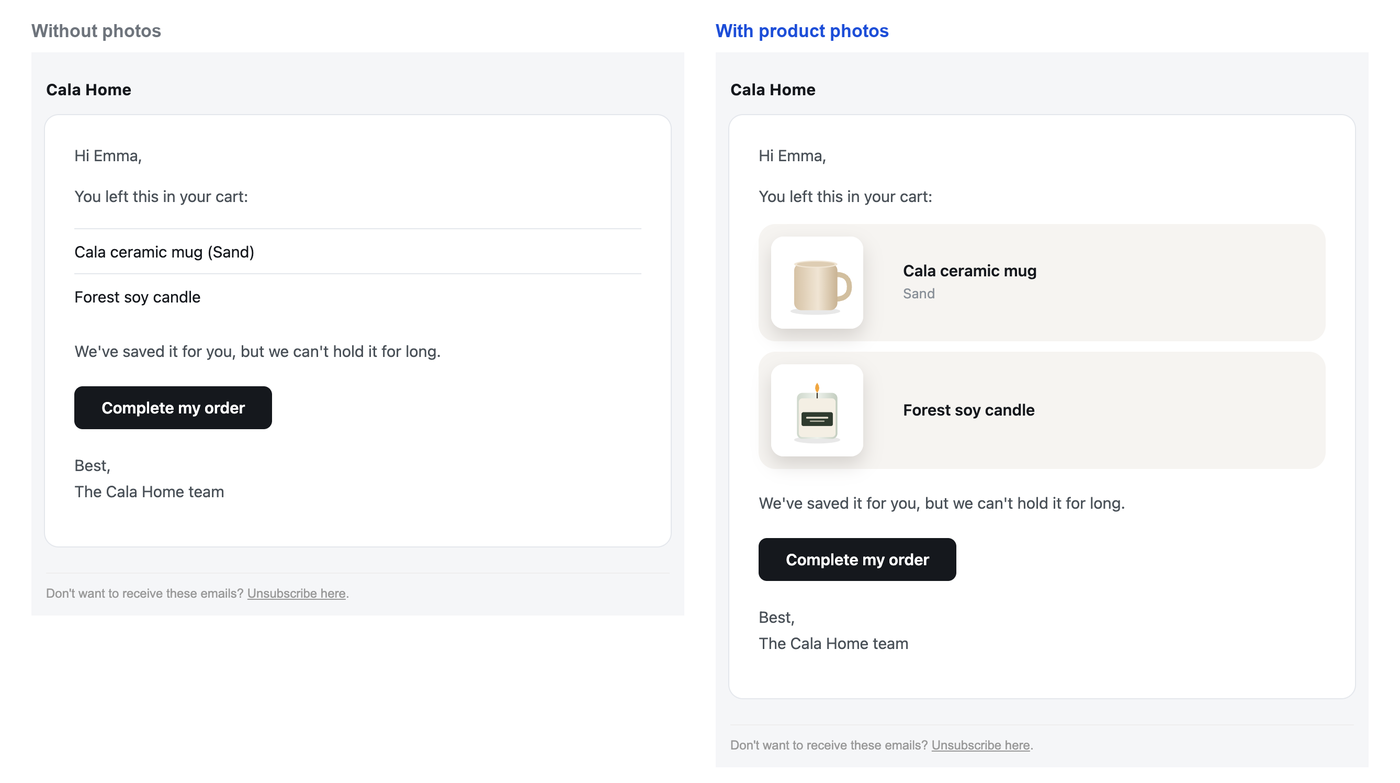
- Each product in its own card, with its photo.
- The variant your customer chose, with that variant's photo.
- In your 3 cart emails.
- Your text doesn't change, word for word.
Why an email with photos converts better
Every cart recovery guide agrees on showing the product. It isn't about looks: a cart email with photos converts better than one with a text list.
- They recognize what they left at a glance. No need to remember what it was or go back to the store to see it.
- They see the variant they chose. The color or size with its photo takes them back to the moment they were about to buy.
- The product leads to the button. The photo catches the eye, and the button to complete the purchase is right below it.
You choose the photo
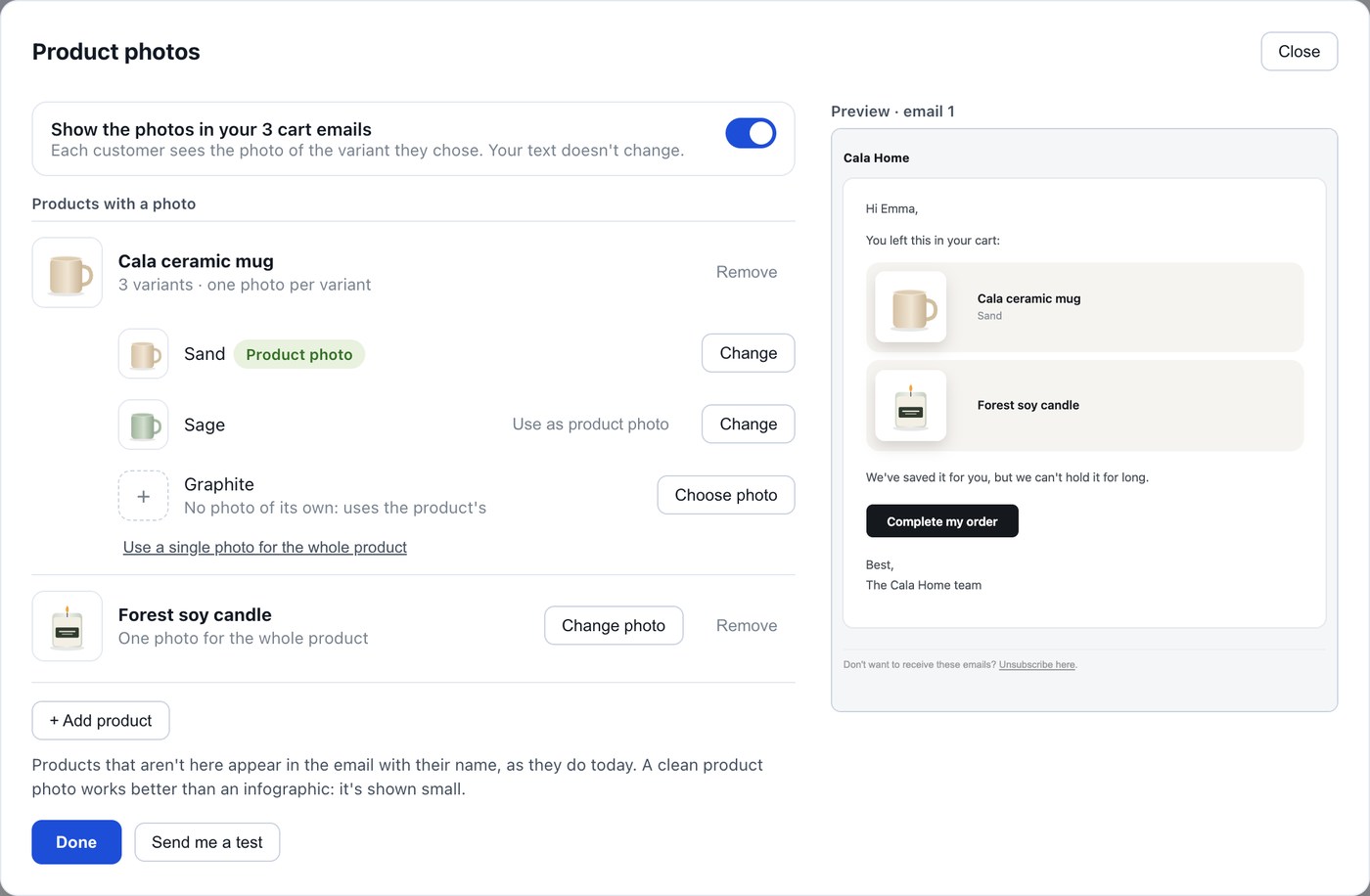
A product's main photo is sometimes an infographic with text. In an email it's shown small and can't be read. That's why you choose: one of your store's photos or one of your own, one for the whole product or one for each variant.
How to set it up, step by step
Open “Product photos”
In Settings → App → Cart recovery.
Allow mailipy to read your products
Shopify asks you once. It's read only: mailipy doesn't change anything in your store.
Add your products
Your Shopify store's products appear, with a search box. If you create a new one later, you add it the same way.
Choose each one's photo
One for the whole product or one per variant. You can use a photo from your store or upload another: one per variant, and to change it you replace it.
Check it and turn it on
You see your email with the photos and send yourself a test. When you like it, turn on the switch.
What it costs
| Plan | Product photos |
|---|---|
| Free | Not included. |
| Pro · $15/month | Not included. |
| Plus · $29/month | Included. Plus 300 support drafts and 750 cart emails a month. |
| Max · $49/month | Included. 750 support drafts and 2,000 cart emails a month. |
Plans are charged on your Shopify bill, like any other app.
Questions
Does the text of my emails change?
No. Your copy stays the same. The photos take the place of the product list or go above the button back to the cart.
What if a product has no photo?
It appears in its card with its name, as it does today.
How many photos can I upload?
One per variant, or one per product if you use a single photo. To change it, you replace it. You can choose your Shopify store's photos with no limit.
Does it work with my brand?
Yes. If your “My brand” template is on, the cards use your font and your colors.