What your agent knows, at a glance
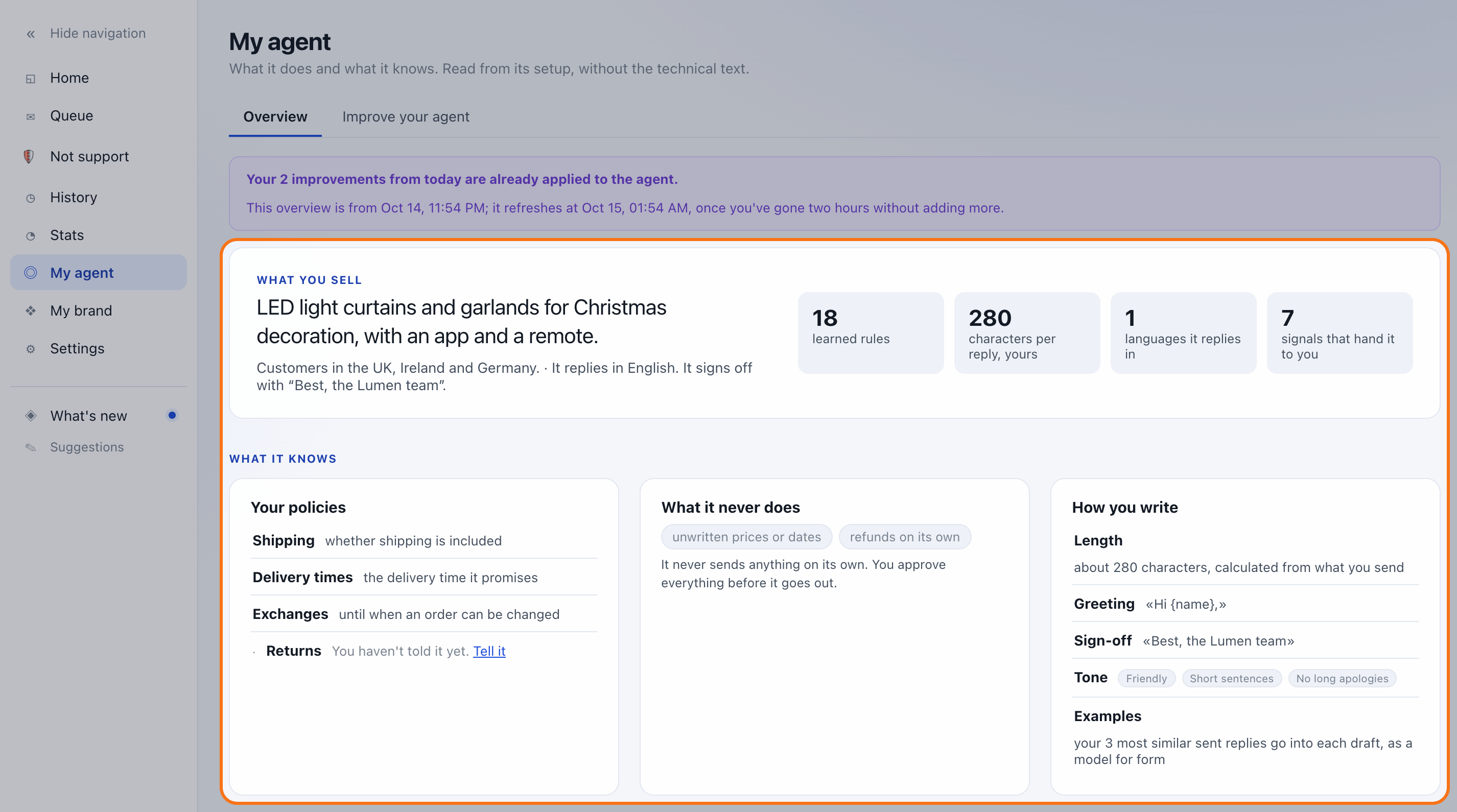
- What you sell and to whom, and four numbers: learned rules, characters per reply, languages and signals.
- Your policies by topic. It names what each one is about, not what it says.
- What it never does.
- How you write: length, greeting, sign-off and tone, calculated from what you send.
- When it hands things to you, what it has learned and the labels it applies on its own.
- If there's a topic you haven't told it about, you see it with a link to tell it.
- It refreshes on its own when your agent changes.
- The instructions are no longer edited by hand. Whatever you want to change, you tell it.
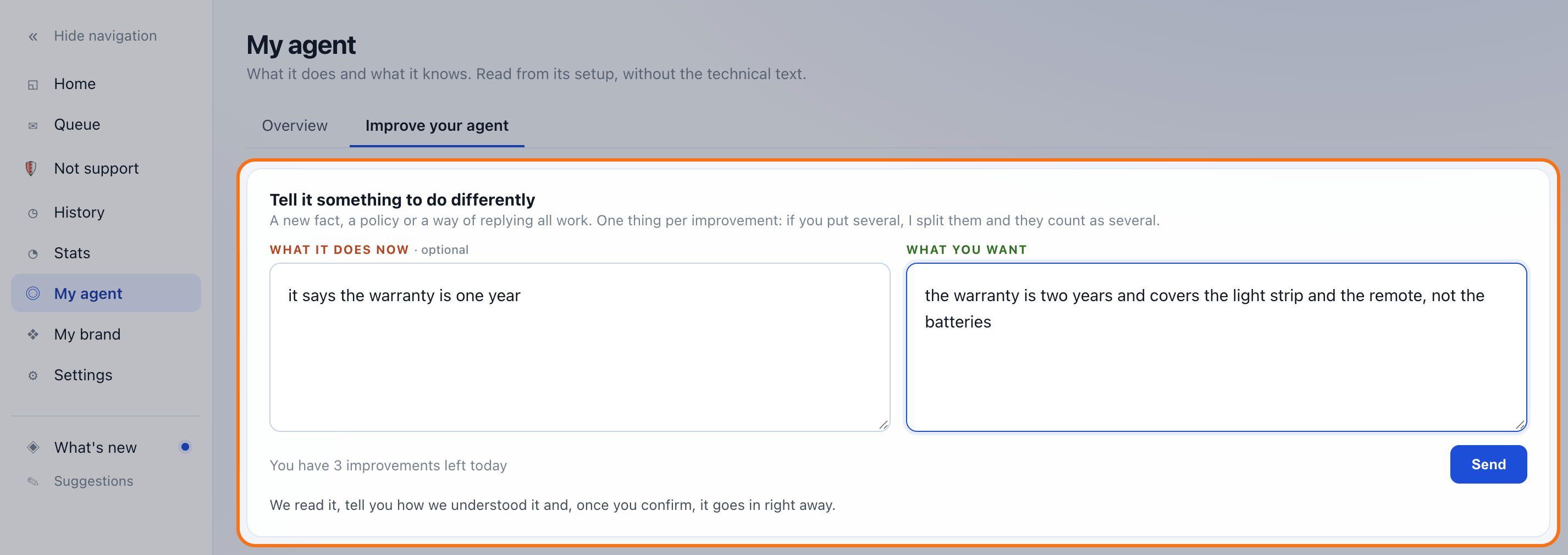
Tell it something new in two boxes
In the “Improve your agent” tab, two boxes: what it does now (optional) and what you want. A new fact, a policy or a way of replying all work. One thing per improvement: if you put several, we split them and they count as several.
You confirm what it understood
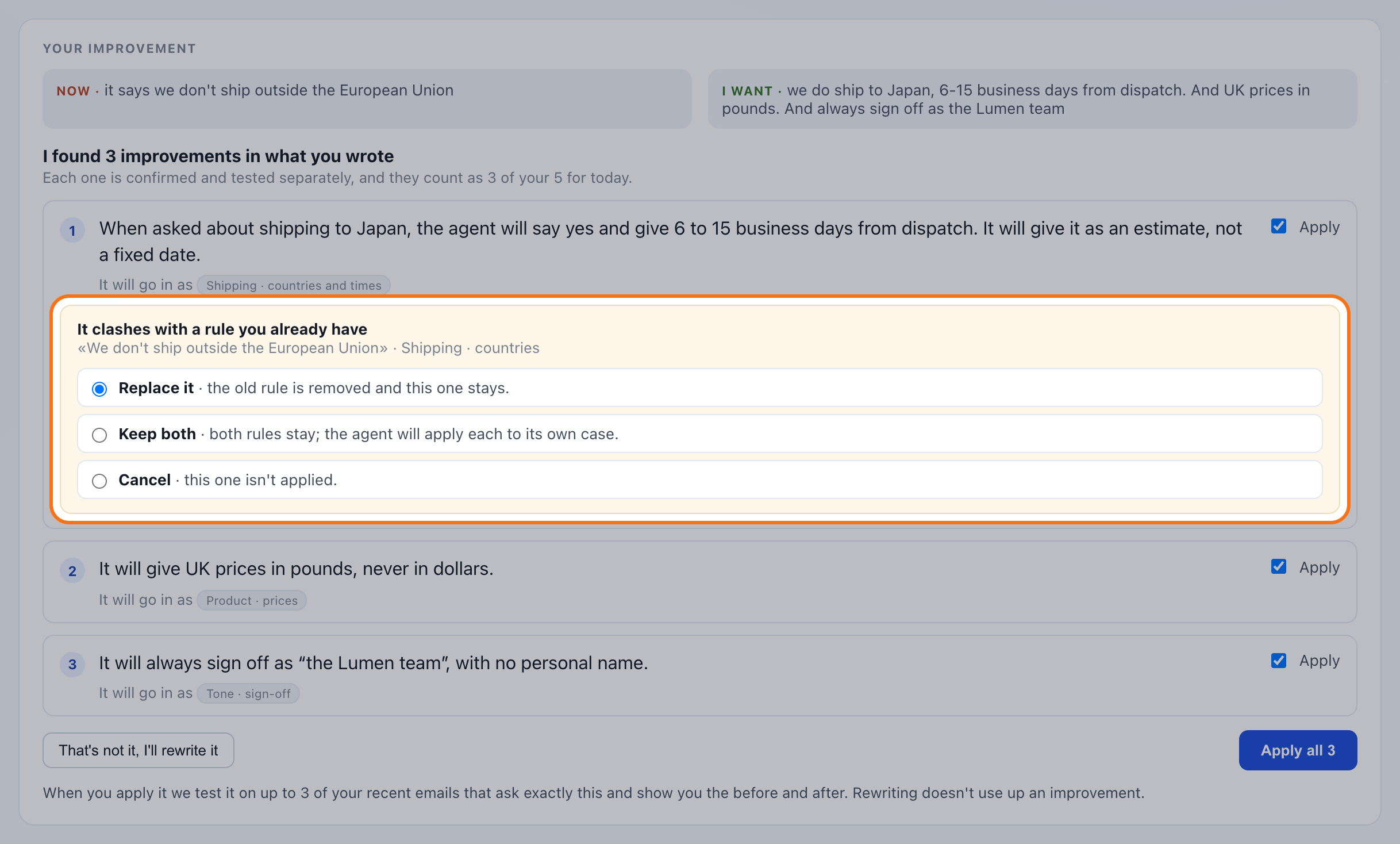
It comes back in two sentences: what the agent will do from now on. If it clashes with a rule it already had, it tells you and you choose: replace it, keep both or cancel. If it's missing a fact, it asks you one question, one at most. Rewriting or asking doesn't use up an improvement.
And you see it work, before and after
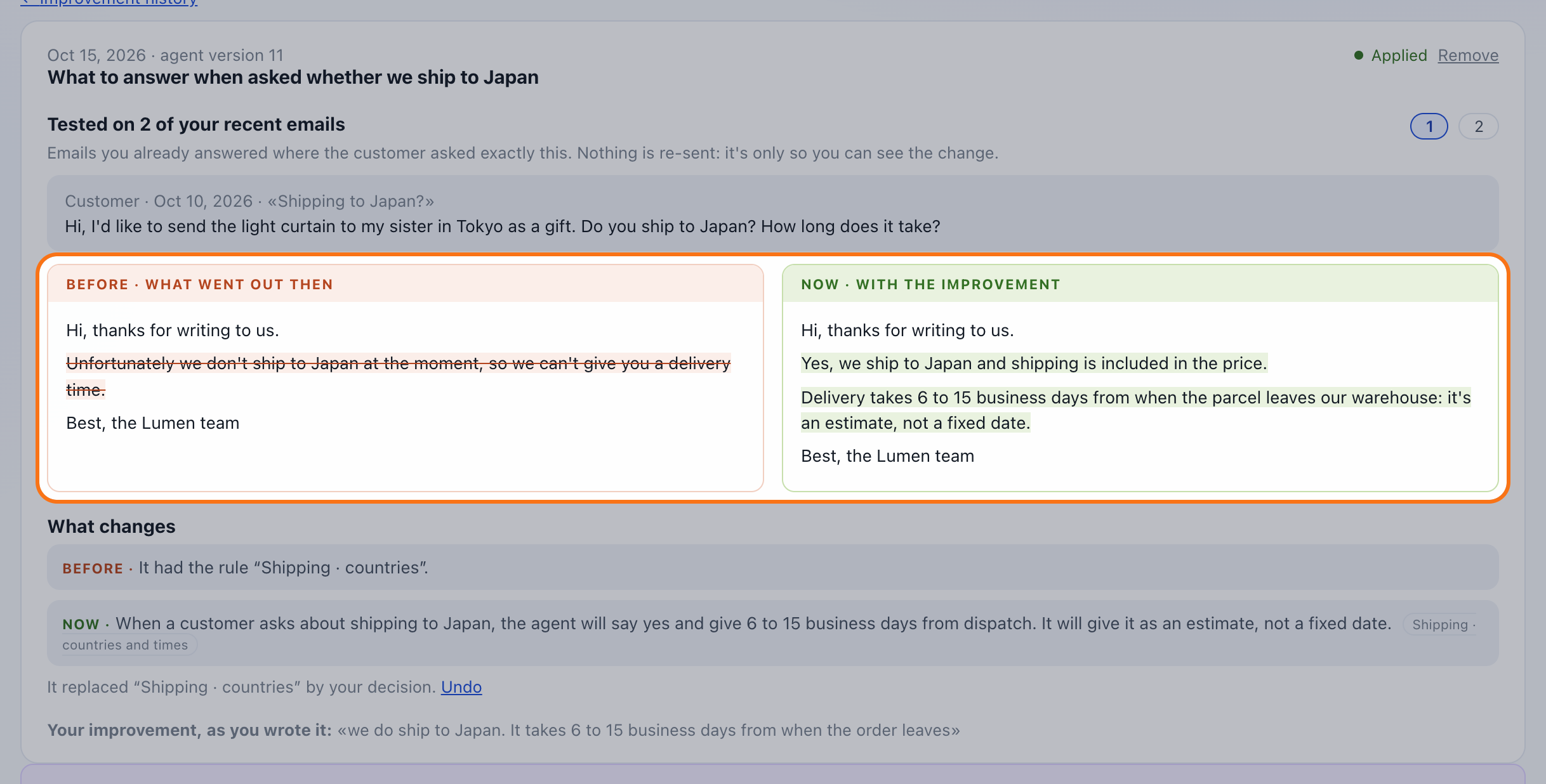
When you apply it, we look for up to three of your recent emails where the customer asked exactly that and show you the reply that went out then next to the one that would go out now. Nothing is re-sent: it's so you can see the change. Each improvement stays in a history with its report, and you can remove it from there if it doesn't convince you.
What it costs
Nothing extra. It's on every plan, with a cap of 5 applied improvements a day. Your agent keeps learning on its own from what you edit in the queue, as before.
Questions
Does anything get sent on its own?
No. Improvements change how the agent drafts; you still approve every reply.
Can I see or edit the prompt?
No. The overview shows what each thing it knows is about, and improvements are how you change it. If you want to start over, you can redo the interview.
What if I get it wrong?
Open the improvement in the history and click “Remove”. If it replaced an earlier rule, “Undo” is right there.
Why 5 a day?
So each improvement is one clear idea and gets tested on its own. You can send more tomorrow; whatever doesn't fit today is saved to send with one click.