Where to set it
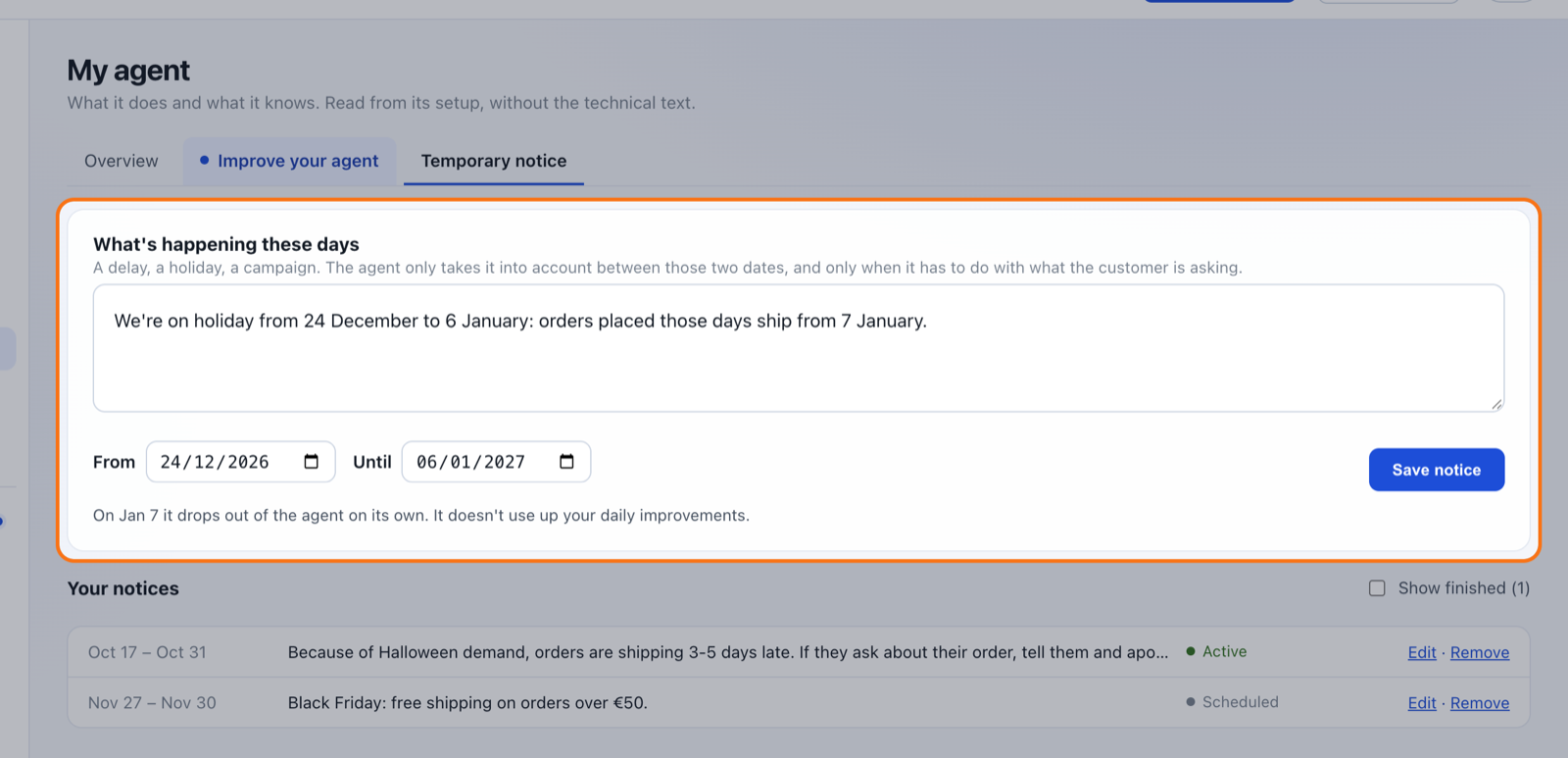
Left-hand menu → My agent → “Temporary notice”. Write what's happening in your own words, up to 600 characters, pick “From” and “Until” and click “Save notice”. Below it you see your notices and their status: active or scheduled.
What your agent does with it
It only takes it into account between those two dates, and only when it has to do with what the customer is asking. Someone asking about their order hears about the delay; someone asking about a size doesn't. You review the draft before it goes out, as always.
While it lasts
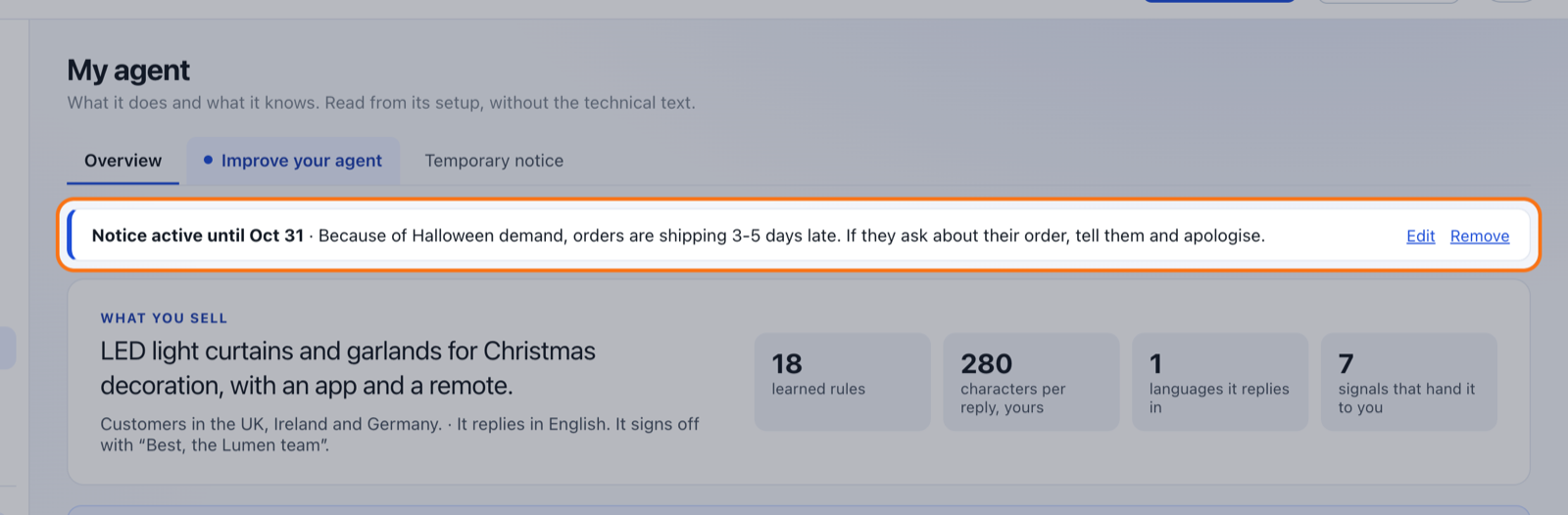
At the top of the My agent overview you see the active notice and when it ends, with “Edit” and “Remove”. It's what reminds you it's there.
When it ends
The day after “Until”, it's no longer in your agent. There's nothing to remove. You can have several at once and leave one scheduled: the Christmas holiday one starts counting on 24 December.
- Up to 10 active or scheduled notices.
- Dates count in your time zone.
- “Remove” takes it out straight away.
Temporary notice or Improve your agent
If it's for good, like a policy or a fact that doesn't change, tell it in “Improve your agent”. If it has an end date, make it a notice: told as an improvement, it would stay in your agent after it was over.
Questions
Is anything sent to my customers?
No. A notice isn't an email: it's something your agent knows while it lasts, and it uses it in the replies you approve.
When does it start and end?
It starts at the beginning of the “From” day and ends at the end of the “Until” day, in your time zone.
How many can I have?
Up to 10 active or scheduled at once. Finished ones stay in the list for reference.
Does it change the drafts already in my queue?
No. It's used by the drafts written from the moment you save it.
Can I remove it early?
Yes. “Remove” takes it out of your agent straight away, from the tab or from the overview.